
Setting up your Zeta Login Account
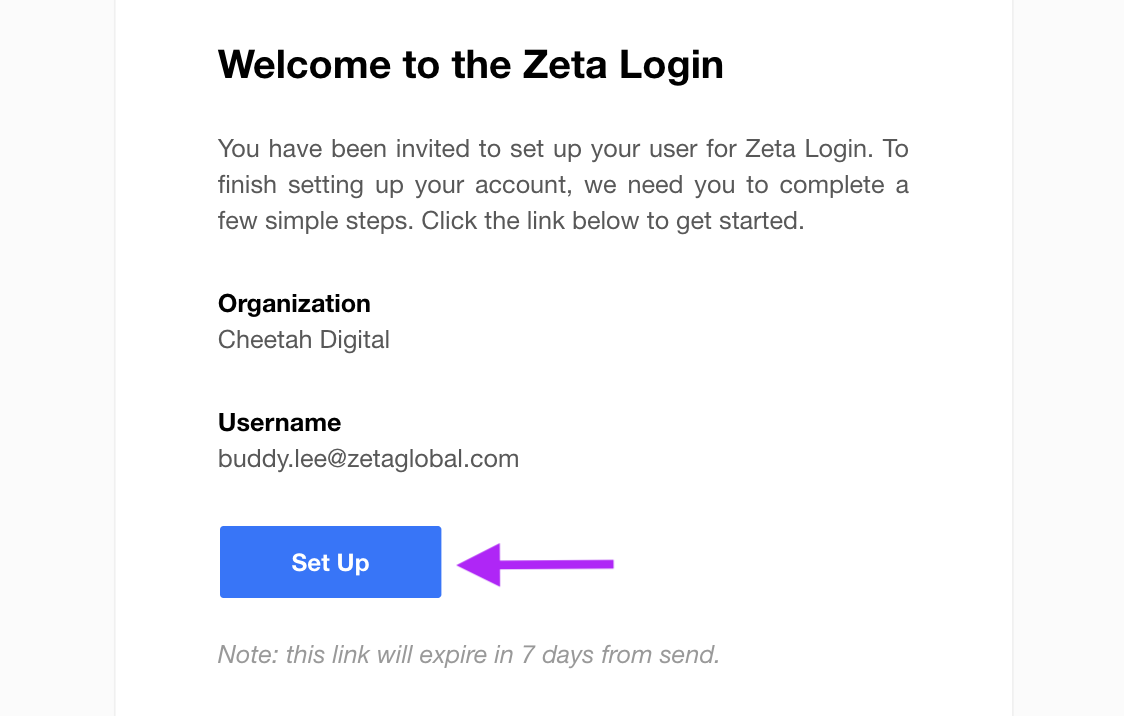
Once your Organization has been onboarded in Zeta Global, the platform will send you a Welcome Email. This email message contains an activation link which you can use to set up your Zeta Login account. This link has a 7-day expiration.
To set up your new Zeta Login:
-
Check your inbox for the Welcome Email message.
Note: If the activation link expires before you can activate your account, see our Troubleshooting tips below.
-
In the Welcome Email message, click Set Up.
-
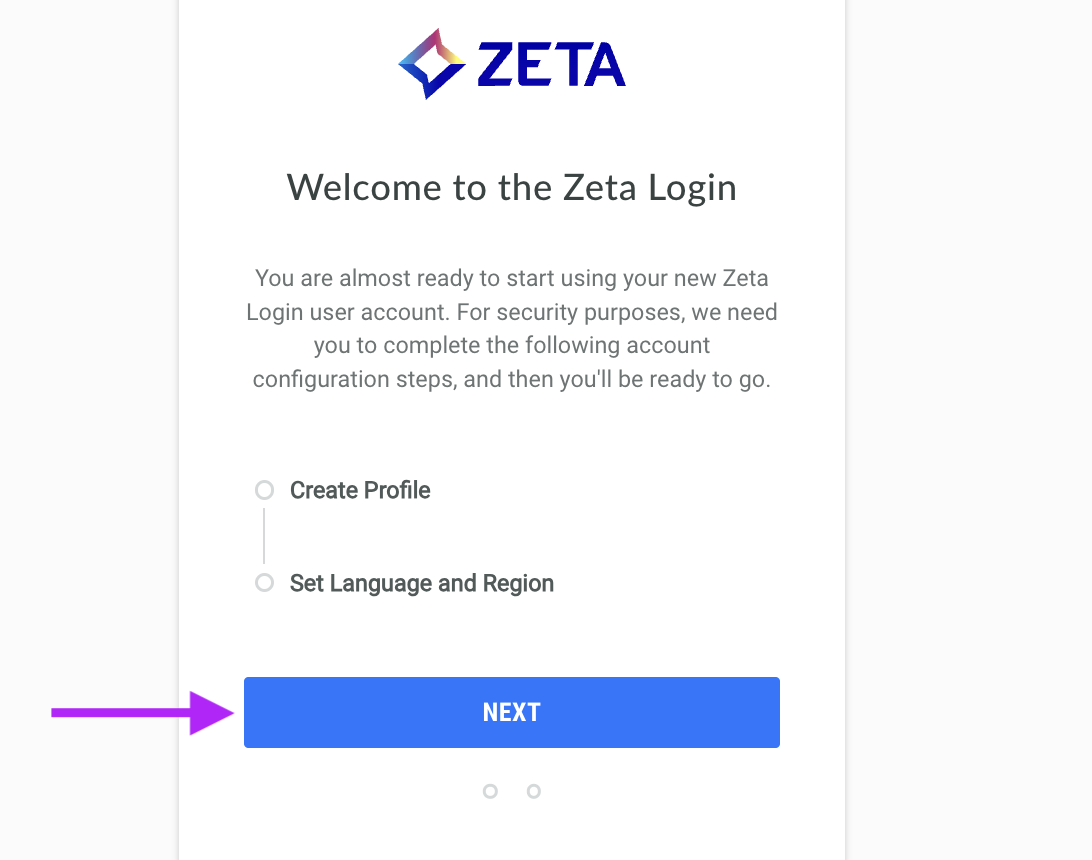
The Welcome to the Zeta Login pop-up window is displayed. Click Next.
-
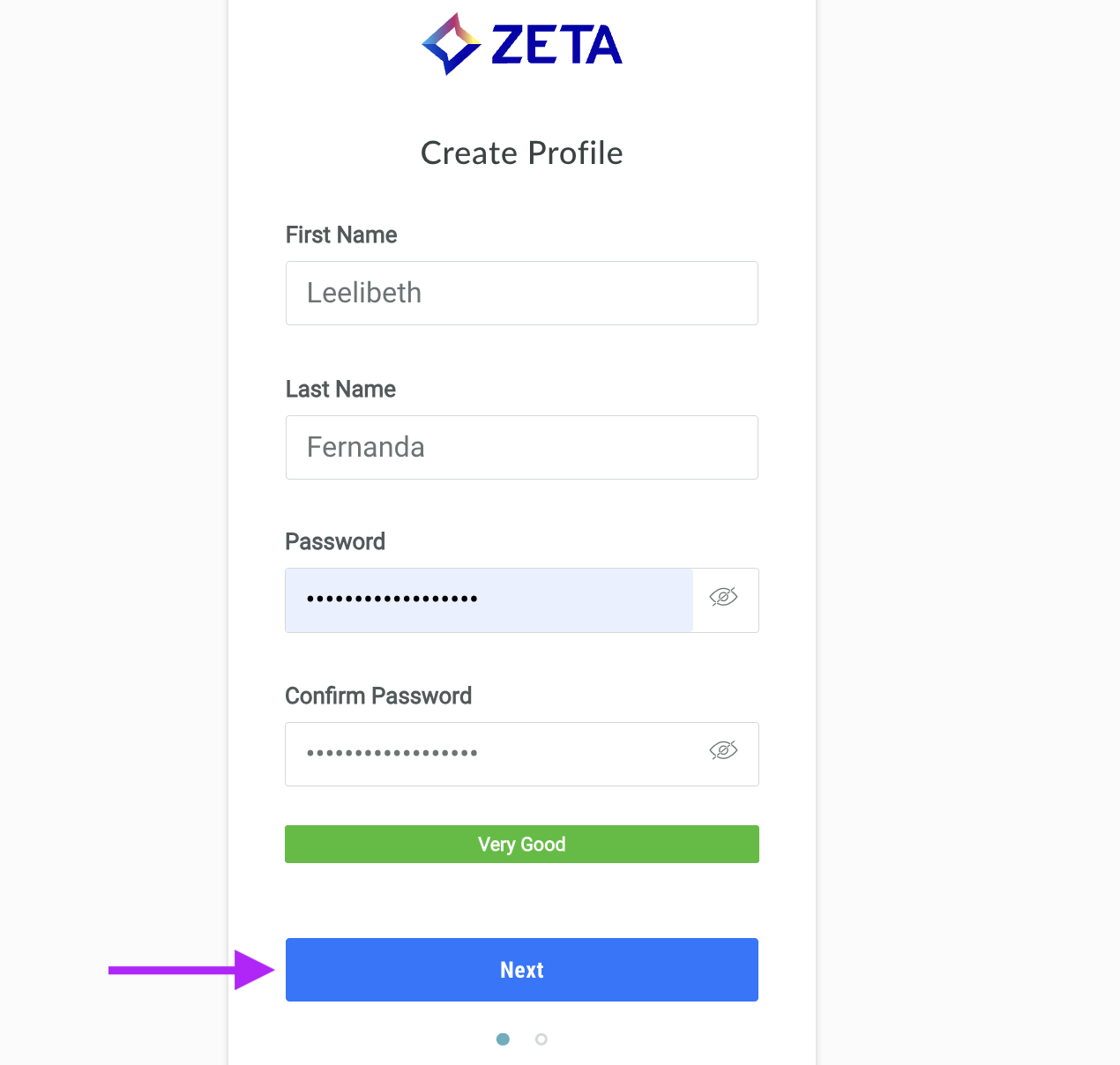
The Create Profile pop-up window is displayed. Enter your name, and create a password for your new Zeta Login.
-
Click Next.
-
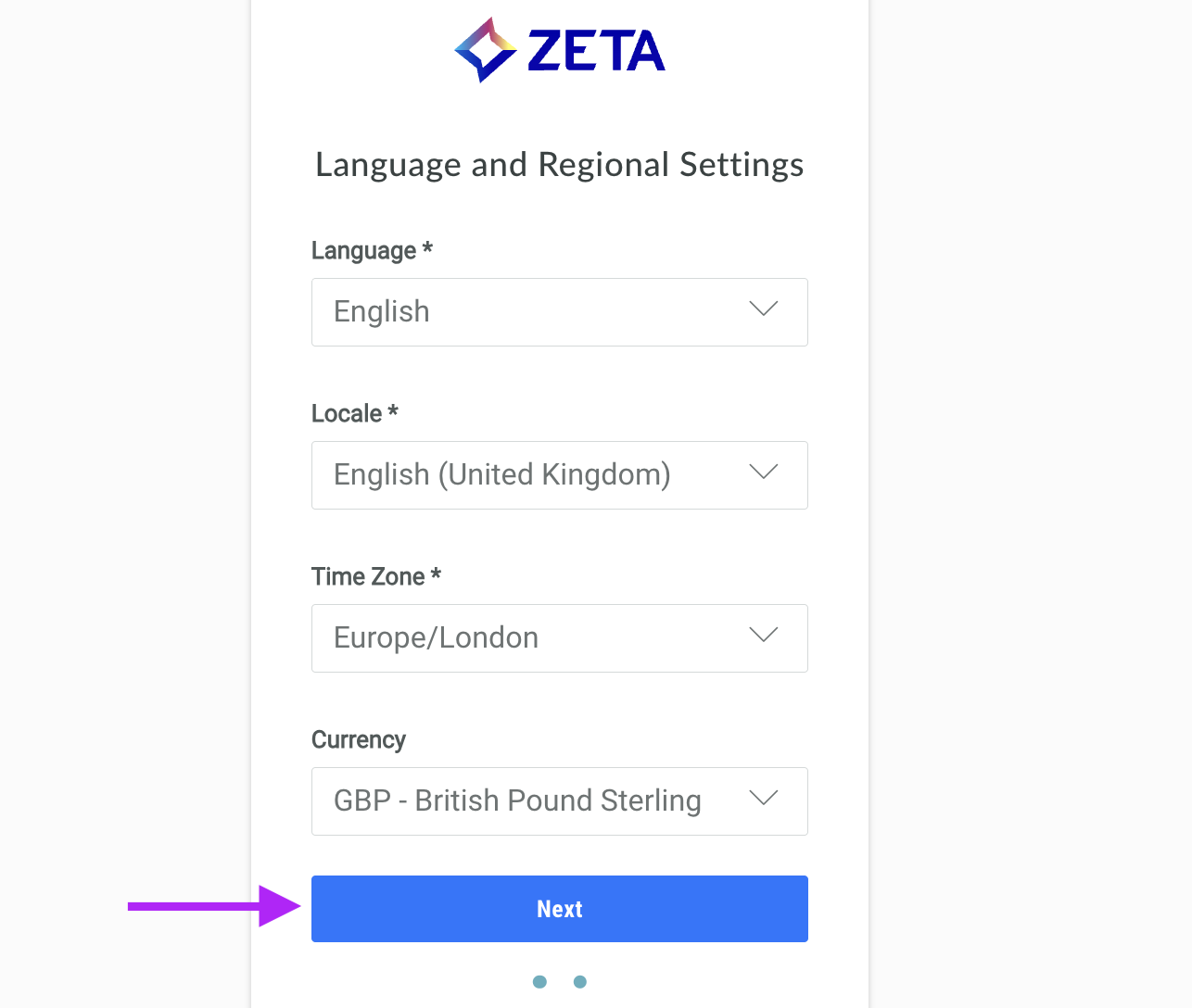
The Language and Regional Settings pop-up window is displayed. Select your preferred language, and your location and time zone.
-
Click Next. The platform logs you into the Zeta Login User Workspace. For more information, please see Zeta Login User Workspace.
Troubleshooting
There are several ways you can troubleshoot access issues.
Login page
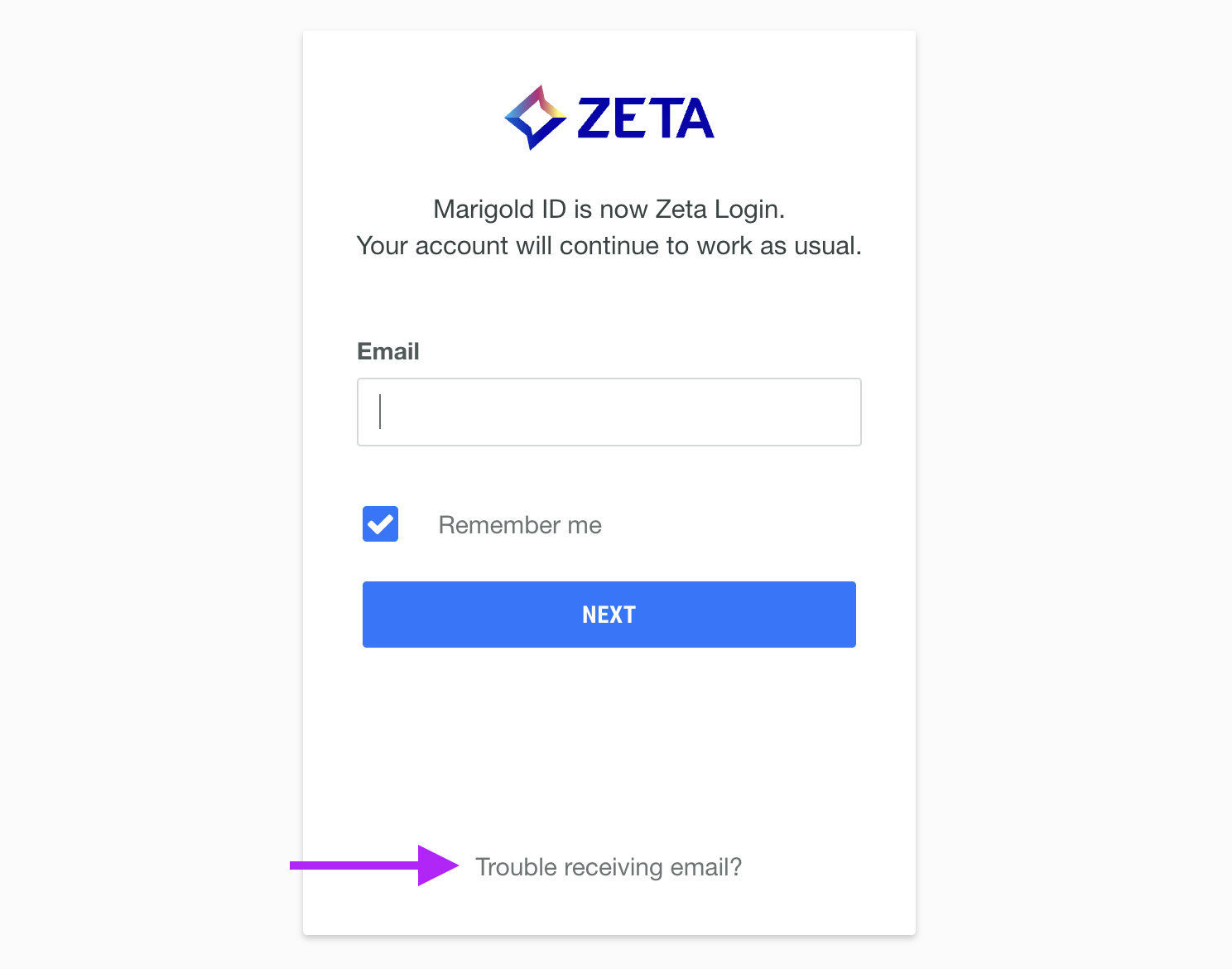
If you are having trouble logging in, or the welcome email has expired, click Trouble receiving email? on the login page.
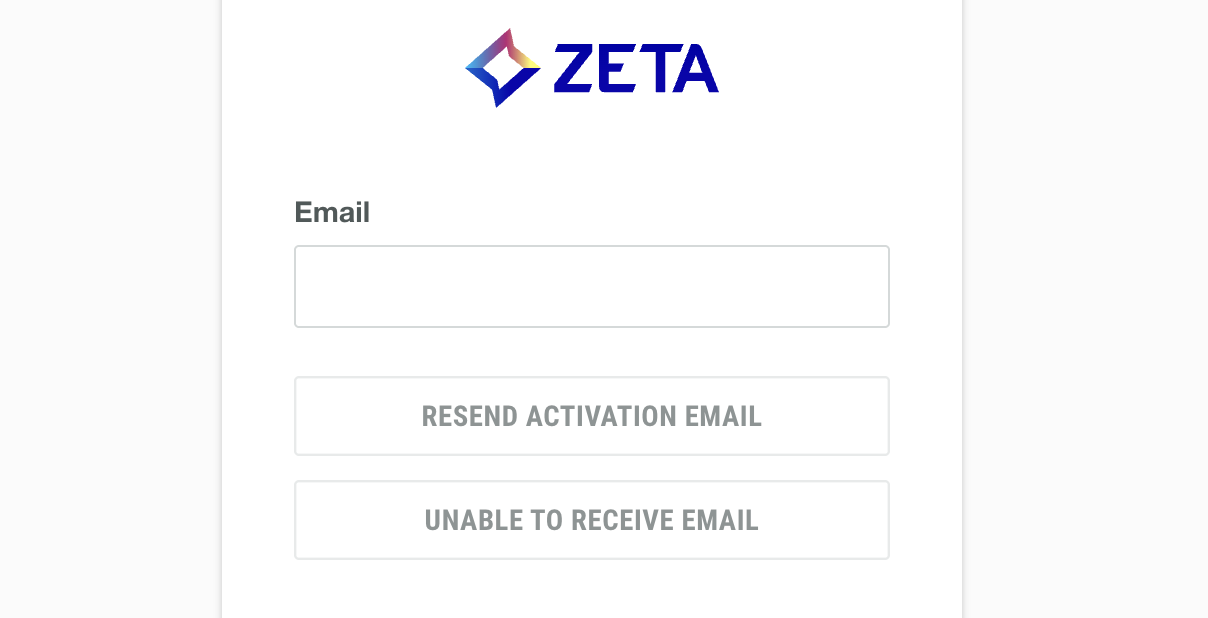
Enter your email address and click Resend Activation Email to receive a new welcome email.
If you are a new user and not receiving the emails, click Unable to Receive Email to send a one time code to login and set up your account.
Welcome email
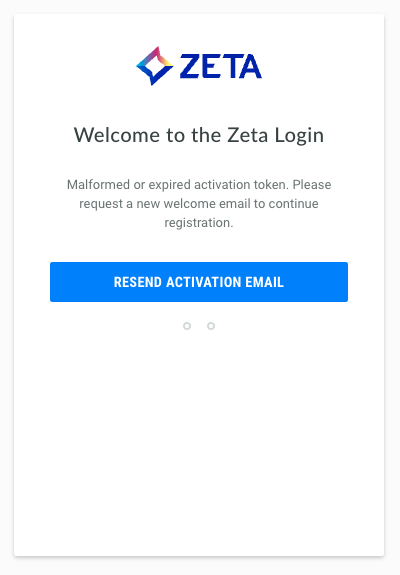
The welcome email expires after seven days of it's receipt. If you try to activate your account with an expired link, you will see a clear message explaining that the activation link has expired.
Click Resend Activation Email.
Enter your registered email address and complete the CAPTCHA to continue. Click Send.
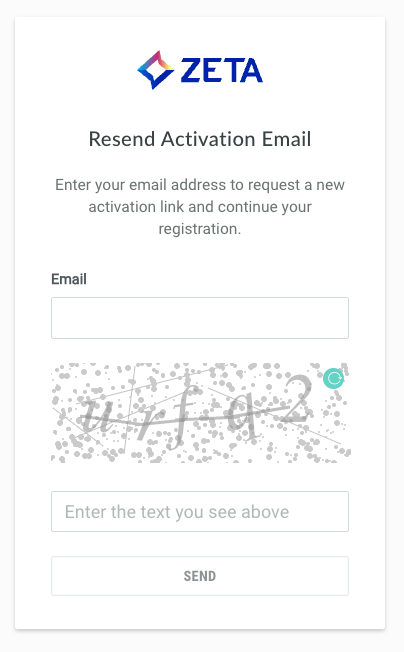
Note: To protect account security, Zeta Login does not reveal whether the entered email address exists in the platform.
You will see a confirmation message to let you know that a new email has been sent.
Return to your inbox to login using the new link.